When you download a 3D model, you usually get an STL file, and more and more often a 3MF as well. You can open and print both in your slicer. Yet they are very different files. This guide explains what is inside each format, the pros and cons, and which file is best to use.
STL: shape only
STL is the oldest and most widely used format for 3D printing. It was developed in the late 1980s by 3D Systems, for the very first 3D printers.
An STL file describes only the surface of a model, as a net of small triangles (a mesh). That is all it holds:
- No units. An STL does not say whether its numbers are millimetres or inches. Slicers assume millimetres. If a model comes in a hundred times too small or too large, it was probably saved in a different unit.
- No colours or materials.
- No print settings.
- No bed layout. If a model has several parts, you usually get one STL per part.
The big advantage: every slicer and every 3D program can open STL. It is the universal language of 3D printing.
3MF: the whole project in one file
3MF (3D Manufacturing Format) was developed by the 3MF Consortium, in which Microsoft and major names in 3D printing work together. The format was created to solve the limitations of STL.
A 3MF file is actually a ZIP archive with XML files inside. It can contain:
- Units, so no more confusion between millimetres and inches.
- Multiple parts in one file, with names, and how they sit on the bed.
- Colours and materials, for example for multi-colour printers.
- Print settings, if the slicer writes them. Bambu Studio, PrusaSlicer and OrcaSlicer save their whole project (profiles, per-part tweaks, plate layout) in a 3MF.
- A preview image and extra metadata.
Because the geometry is stored more compactly and the whole thing is compressed, a 3MF is often smaller than the same shape as STL.
Side by side
| STL | 3MF | |
|---|---|---|
| Shape (mesh) | Yes | Yes |
| Units | No (assumed: mm) | Yes |
| Multiple named parts | No, usually one file per part | Yes |
| Colours and materials | No | Yes |
| Print settings | No | Possible, depending on the slicer |
| Support | Everywhere | All major slicers; some older programs not |
| File size | Larger | Usually smaller |
Which slicers open 3MF?
Bambu Studio, PrusaSlicer, OrcaSlicer and Cura all open 3MF. One thing to watch: when a slicer opens a 3MF that contains settings for a different printer, it often asks whether you want to load those settings. Usually you want the geometry only, with your own printer profile.
When to use which file
Choose the 3MF if:
- the model has several parts and you want them all on the bed at once;
- you want to be sure of the correct scale;
- you use a modern slicer.
Choose the STL if:
- you want to print just one part, such as an extra cup or a replacement piece;
- you want to modify the model in another program, such as Tinkercad, Blender or a CAD package;
- your software does not support 3MF.
What about STEP?
STEP (.step or .stp) is not a print file but a CAD format. It describes the shape mathematically, with true circles and surfaces instead of triangles. That makes a STEP file easy to edit in CAD software such as Fusion or FreeCAD: enlarge a hole, change a dimension. Some slicers can open STEP and convert it to a mesh themselves. For simply printing, you do not need STEP.
What do you get from LayerKit?
With every LayerKit design you get:
- One STL per part. Handy if you want to reprint a single part or modify the model.
- One 3MF with all parts, in millimetres and with each part named. Open it and every part is ready.
Our 3MF files deliberately contain no print profile, because every profile is tied to one printer and one slicer. The recommended layer height, walls, infill and material are listed per design on the product page, with a tip from the designer. That way the file works on any printer.
Two examples where this helps:
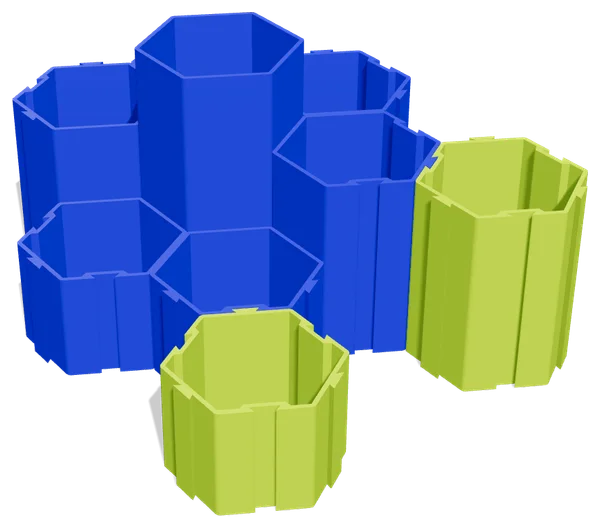
- The Honeycomb Desk Set consists of cups in three heights plus a cluster of seven. In the 3MF you have them all together; if you later want just a few more 70 mm cups, grab the separate STL.
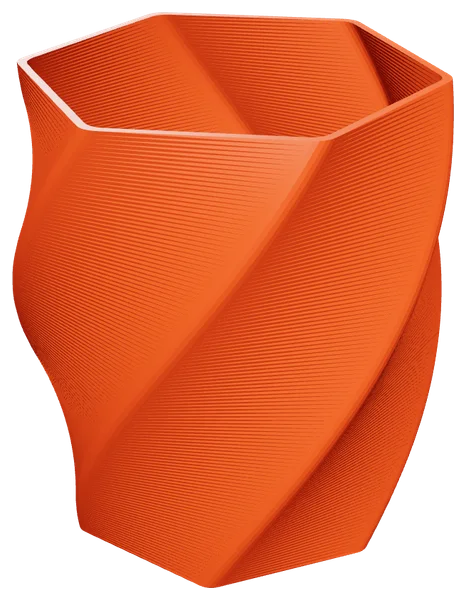
- The Twisted Hex Planter has a planter, a saucer and a vase mode version. The last one prints with different settings (spiral vase), so you put it on the bed on its own.
Every part is digitally checked for printability: a closed model that sits flat on the bed and fits a 180 mm bed. Browse all designs or read on about printing without supports.
Frequently asked questions
Can I convert a 3MF to STL? Yes. Open the 3MF in your slicer and export the part as STL. Colours and settings are lost in the process.
Is 3MF better than STL? For printing with a modern slicer, 3MF is more convenient because it carries more information. STL remains the most universal format. That is why we provide both.
My STL imports far too small. What is wrong? The model was probably saved in inches or another unit. Scale it by 2540% (inch to mm) or use the 3MF, which stores the unit.